All guidesInquiries from your website
User guides

Inquiries from your website

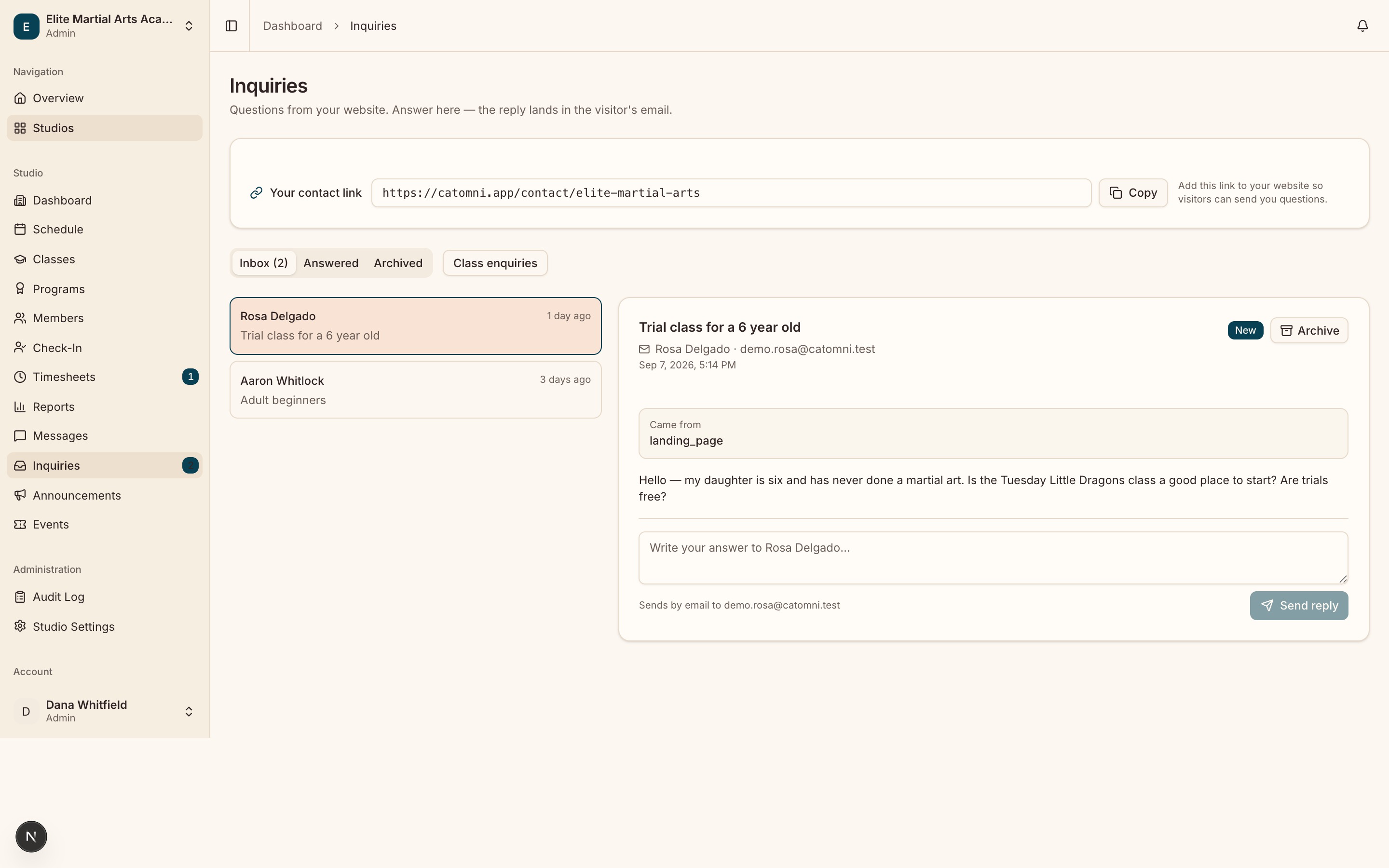
Your studio has a public page at /contact/your-slug. Everything a visitor sends from it — and every “Request to join” from the Catomni studio directory — lands in one inbox.

Answer an inquiry

Sidebar → Inquiries · /studios/{studioId}/inquiries

The page header is “Questions from your website. Answer here — the reply lands in the visitor’s email.”

  1. Open Inquiries and work the Inbox tab. The other two are Answered and Archived.
  2. Select a message. Above it sits whatever the visitor told you: Phone, “Interested in”, “Student age”, Available and “Came from”.
  3. Type into the reply box — labelled “Sends by email to {email}” — and click Send reply.
  4. Archive anything you are not going to answer. Reopen puts it back in the Inbox.
  • Owner, admin and front desk hold Inquiries by default. Instructors do not.
  • The reply is emailed to the visitor directly, with your studio’s email as the reply-to. The inquiry is marked answered only once the send succeeds — if it fails you get “The reply could not be emailed ({error}). The inquiry was left unanswered — try again.”
  • A “Join request” row is a signed-in Catomni account pressing Request to join in the studio directory. It enrols nobody; it is a message, and what happens next is up to you.
  • The email announcing a join request goes to members whose ROLE is owner or admin. A front-desk member sees the row in the inbox but is never emailed about it — the inbox is what they work from.
  • There is no delete. Archive is as far as it goes.
  • The “Class enquiries” filter narrows the list to people asking about classes.
The Inquiries inbox listing new and answered enquiries with the sender, subject and status.
Everything your public page collects lands here, not in an inbox somebody has to remember to check.

Still stuck on something?

The support portal has the rest, and a real person on the other end of it.