All guidesWrite the session report
User guides

Write the session report

Instructors can write the report for any session at the studio, not only their own classes — that is deliberate, so cover and substitute instructors are not locked out.

Open a report

Four routes to the same editor. Use whichever is closest.

  1. From the class page: open the class and go to its Reports tab.
  2. From check-in: the Session report button at the top of the roster panel.
  3. From the schedule: open a session and scroll to the Session report button.
  4. From the studio dashboard: the "Write Session Report" quick-action card.
  • On the Reports tab the button tells you the state: Write report when nothing exists, Continue draft when a draft is waiting, Open report once it is published.
  • The status column reads none, draft, published or edited.
  • The tab lists the most recent past sessions, newest first. Before any class has happened you get "No past sessions yet — reports appear here once a class has taken place."
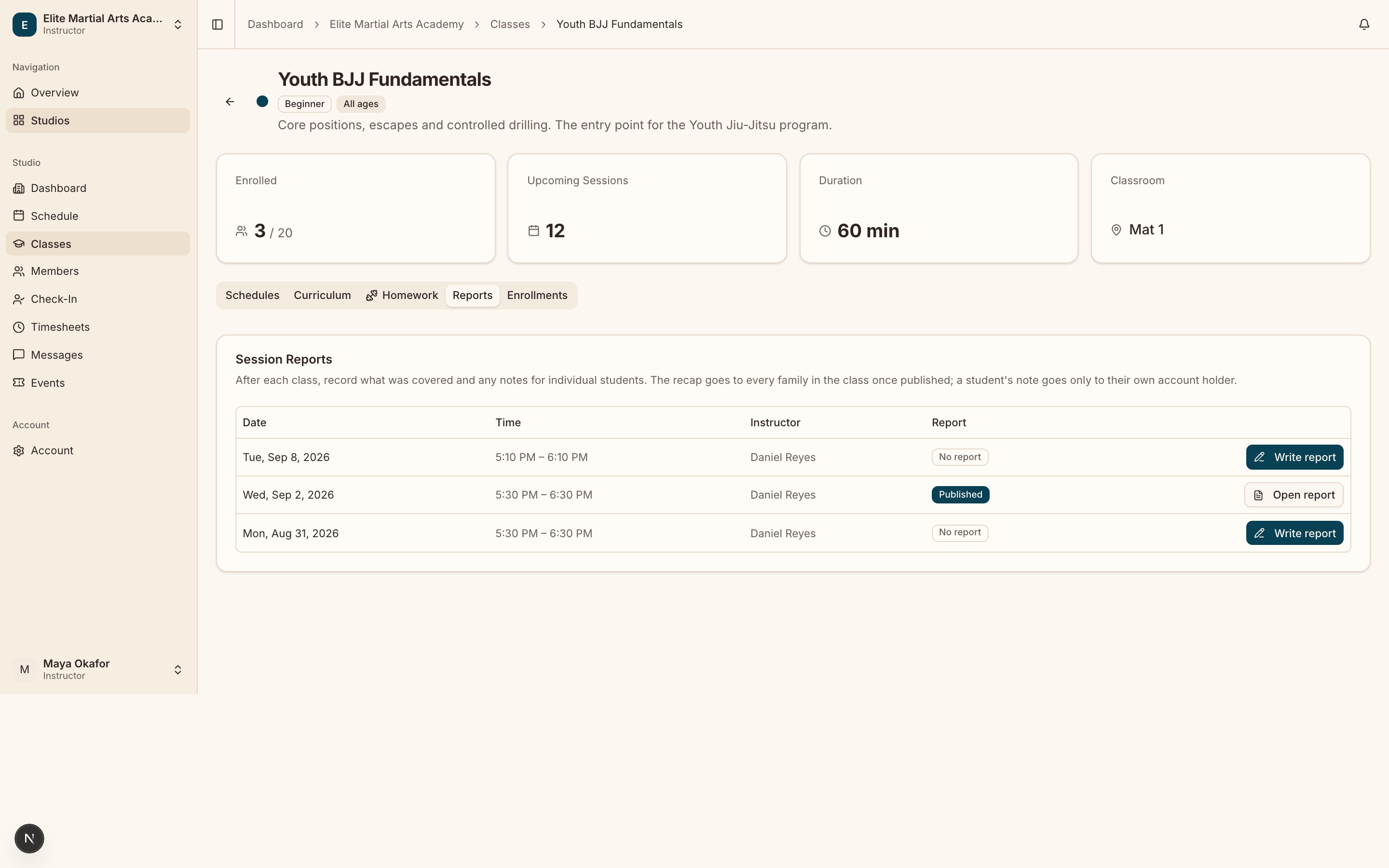
A class’s Reports tab listing its sessions with which already have a published report and which do not.
Every session in the class, and whether its report has gone out yet.

Write and publish it

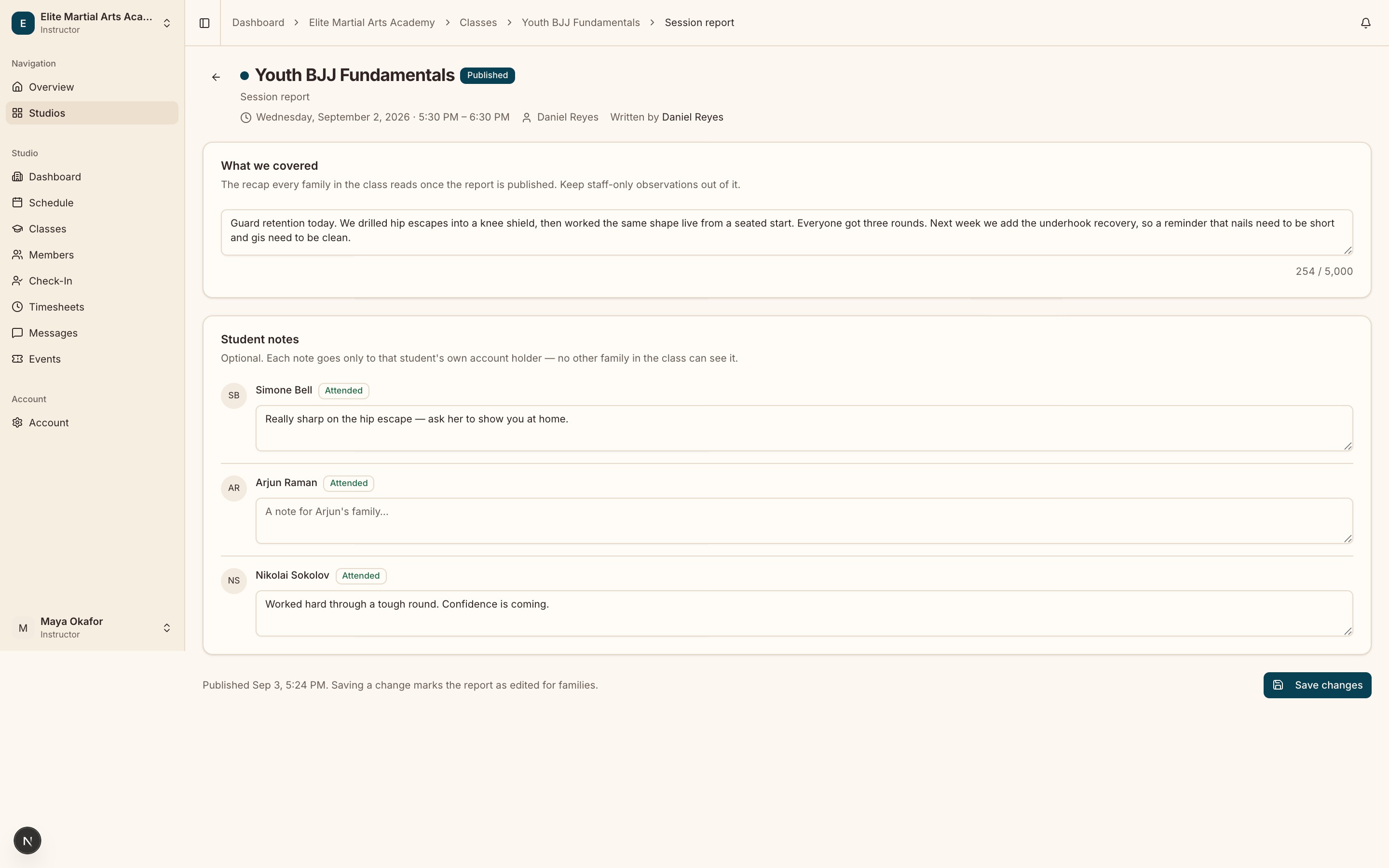
  1. Fill in the "What we covered" card. The placeholder is a good prompt: "Warm-up, the drills, the form we worked on, what to practise at home…". You have 5,000 characters, with a live counter.
  2. Optionally add a note per student in the "Student notes" card — one textarea each, 2,000 characters, placeholder "A note for {firstName}’s family…". Students who attended carry an Attended badge.
  3. Click Save draft to come back to it, or Publish to send it.
  4. Once published, the two buttons are replaced by a single Save changes.
  • The recap is read by every family in the class. The card says so: keep staff-only observations out of it.
  • A student note goes only to that student’s own account holder — no other family in the class can see it.
  • Publishing is a one-way door. There is no unpublish.
  • You cannot publish a class that has not happened yet. Drafting ahead is fine — the footer tells you to save a draft and publish once it has. The cutoff is the studio’s calendar day, so a class this evening already counts as today.
  • Publish stays disabled until the recap has text in it. Student notes alone are not enough.
  • Re-saving a published report only marks it edited if you actually changed something.
  • A cancelled session cannot be written up at all.
  • Publishing queues an email to the guardians of that session’s roster — subject “{class name}: class report for {date}” — carrying your recap in full and a link to their portal.
  • That email goes out ONCE, on the first publish. Correct the report later and nobody is emailed again; the version in their portal updates and is badged Edited.
  • Families read it under Class Reports in the portal. They see the recap, and a boxed “Note for {first name}” only if you wrote one for their child.
  • You can write the report for any session at your studio, not only your own — so covering a colleague’s class is not a special case.
The session report editor with the "What we covered" card filled in and the character counter visible, the "Student notes" card below showing two or three students (at least one with an Attended badge), and the Save draft / Publish buttons.
The recap goes to every family in the class; a student note goes only to that student’s account holder.

Still stuck on something?

The support portal has the rest, and a real person on the other end of it.